

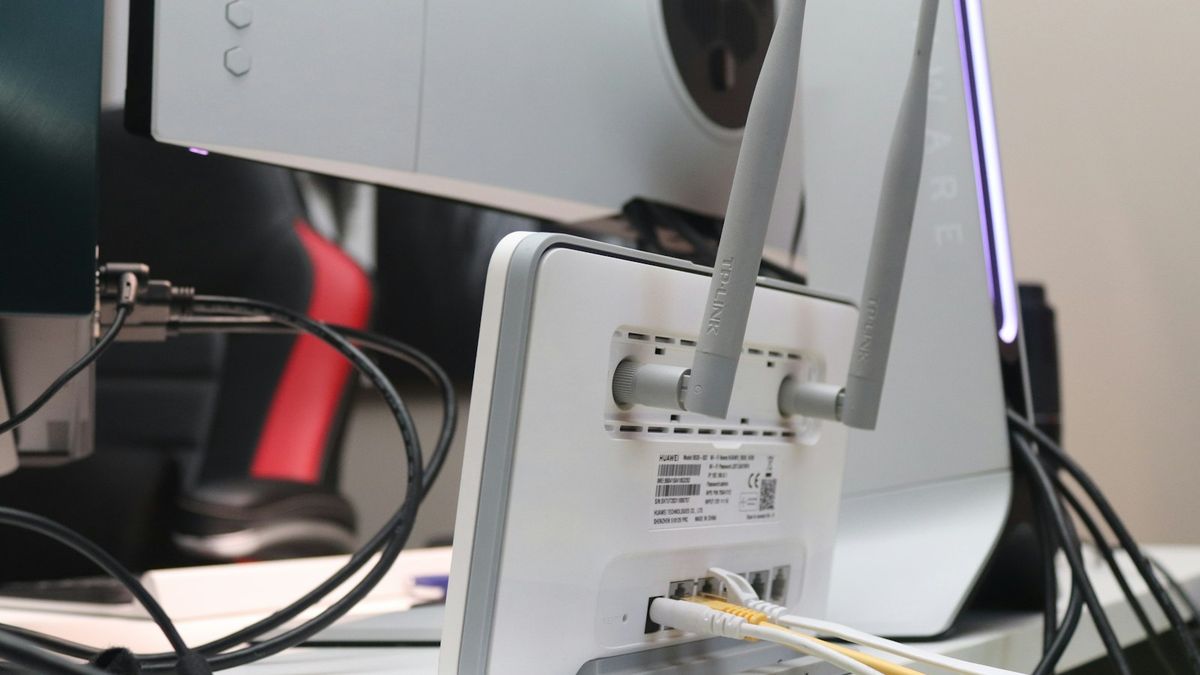
When a Hisense TV won't connect to Wi-Fi, the cause is usually one of three things: it's on the wrong band (models before 2020 are 2.4GHz-only and can't see 5GHz networks), the password was mistyped because Hisense hides the characters, or DNS and gateway settings got corrupted after a firmware update.
Table of contents(26)+
- 01Fix 1 — Restart the router
- 02Fix 2 — 2.4 GHz vs 5 GHz (the most common Hisense gotcha)
- 03Fix 3 — Wi-Fi password typo
- 04Fix 4 — Router AP / Client isolation
- 05Fix 5 — IP address conflict / DHCP exhaustion
- 06Fix 6 — Poor Wi-Fi signal at the TV's location
- 07Fix 7 — DNS server issues
- 08Fix 8 — Firmware bug (the 2024 Hisense Wi-Fi regression)
- 09Fix 9 — Forget and re-add the network
- 10Wired Ethernet — the nuclear option
- 11Per-platform Wi-Fi quirks
- 12VIDAA (most global Hisense models)
- 13Hisense Roku TV
- 14Hisense Google TV / Android TV
- 15Hisense Fire TV
- 16How to control your Hisense TV when Wi-Fi is broken
- 17FAQ
- 18Why does my Hisense TV say connected but no internet?
- 19Why does my Hisense TV connect but apps still won't load?
- 20Can a Hisense TV connect to a 5GHz network?
- 21Why does my Hisense TV keep disconnecting from Wi-Fi?
- 22How do I connect a Hisense Roku TV to Wi-Fi?
- 23My Hisense TV keeps asking for the Wi-Fi password — why?
- 24Why won't my Hisense TV connect after a power outage?
- 25Will Ethernet fix all my Hisense Wi-Fi problems?
- 26Related guides
When a Hisense TV won't connect to Wi-Fi, almost always the cause is one of three things: the TV is trying the wrong band (Hisense models before 2020 are 2.4GHz-only and can't see 5GHz networks), the password is being typed wrong (Hisense hides characters as you enter them, so a single mistyped character silently fails), or DNS/gateway settings got corrupted after a firmware update. Here are 9 fixes in the order I check them, fastest first.
Fix 1 — Restart the router
a large share of "TV won't connect" issues clear with a router reboot. Unplug for 60 seconds, plug back in, wait 2 minutes, retry.
Fix 2 — 2.4 GHz vs 5 GHz (the most common Hisense gotcha)
Many Hisense TVs from only support 2.4 GHz Wi-Fi. They literally can't see 5 GHz networks even if your router is broadcasting them.
The problem: modern routers often broadcast both bands under the same network name (band steering). The TV may "see" the network, accept the password, but fail to connect.
Fix:
- Log into your router (192.168.1.1 or 192.168.0.1).
- Find Wi-Fi settings.
- Either disable band steering (split into separate networks) or temporarily disable 5GHz.
- On the TV, connect to the 2.4 GHz network specifically.
Fix 3 — Wi-Fi password typo
The on-screen Wi-Fi keyboard on Hisense TVs is brutal. People mis-type letters constantly — especially lowercase L, uppercase I, and number 1 (visually similar in the TV's font).
Test: connect another device (phone) to the same Wi-Fi using the exact password.
Fix: use a USB keyboard plugged into the TV — typing accuracy goes from horrible to fine. Or use the phone remote app with full QWERTY.
Fix 4 — Router AP / Client isolation
Some routers have "AP isolation" that prevents devices on the same Wi-Fi from talking to each other. The TV connects fine but can't reach the internet because the router blocks lateral traffic.
Log into router → Look for "AP Isolation" or "Client Isolation" in advanced wireless settings → Set to OFF.
Fix 5 — IP address conflict / DHCP exhaustion
Symptoms: TV says "Connected" but no internet. Streaming apps fail. Restart router (forces fresh DHCP). Reconnect TV.
Fix 6 — Poor Wi-Fi signal at the TV's location
If the TV is far from the router, signal strength may be too low. Test: stand next to the TV with your phone. If 1-2 bars, signal is the issue. Fix: Wi-Fi mesh, Ethernet, or USB Wi-Fi adapter.
Fix 7 — DNS server issues
If your router's default DNS is slow, manually set DNS on the TV: Settings → Network → Wi-Fi → Modify network. Set DNS to 8.8.8.8 (Google) or 1.1.1.1 (Cloudflare).
Fix 8 — Firmware bug (the 2024 Hisense Wi-Fi regression)
Hisense pushed firmware updates in a firmware update that broke Wi-Fi connectivity on some VIDAA U-series models (U7K, U8K). Patched in ~6 weeks. Update to latest firmware.
Fix 9 — Forget and re-add the network
Settings → Network → Wi-Fi. Long-press your network name (or select and choose "Forget"). Re-add with password.
Wired Ethernet — the nuclear option
If Wi-Fi has been broken for a week, plug an Ethernet cable from the router into the TV's rear LAN port. Bypasses every Wi-Fi issue. Or use a $15 powerline adapter pair.
Per-platform Wi-Fi quirks
Each Hisense smart-TV platform handles Wi-Fi connection slightly differently. Knowing which platform yours runs saves diagnostic time.
| Platform | Wi-Fi reliability | Account needed | Most common issue | Key fix |
|---|---|---|---|---|
| VIDAA | Most fragile | No | Band-steering, short DHCP timeout | Assign a static IP |
| Roku TV | Most reliable | Roku account | Connected, no internet = not logged in | System restart, re-login |
| Google TV | Good | Google account | Slow reconnect after sleep | Turn off Always scan |
| Fire TV | Good | Amazon account | Apps fail = Amazon auth, not Wi-Fi | Sign out and back in |
VIDAA (most global Hisense models)
VIDAA's Wi-Fi pairing is the most fragile of the four platforms. Common issues: doesn't gracefully handle band-switched routers, the captive-portal renderer crashes on some hotel networks, and the DHCP timeout is short (60 seconds) so slow routers fail authentication.
VIDAA-specific fix: Settings → Network → Network configuration → IP Settings → switch to Manual and assign a static IP outside your router's DHCP pool (e.g., if router is 192.168.1.1 with DHCP up to .100, set TV to 192.168.1.200).
Hisense Roku TV
Roku-powered Hisense models have the most reliable Wi-Fi stack but require a Roku account login on first connection. The "Connected, no internet" symptom usually means your TV isn't logged into the Roku account — Settings → System → System restart sometimes prompts the re-login flow.
Hisense Google TV / Android TV
Google TV uses Android's Wi-Fi manager. Compatible with all router types but slow to reconnect after sleep (sometimes 30-60 seconds). If the connection drops mid-stream, check Settings → Network & Internet → Wi-Fi → Advanced → "Network preferences" → ensure "Always scan" is off (interferes with stable connections).
Hisense Fire TV
Fire TV's Wi-Fi works fine on most routers but requires Amazon account login. Symptom: "Connected" but Prime Video won't load = Amazon authentication failure, not Wi-Fi. Sign out + sign back into your Amazon account on the TV.
How to control your Hisense TV when Wi-Fi is broken
If you've spent hours trying to fix Wi-Fi with no luck and just want to use the TV: switch the input via the physical button and play from a USB stick or HDMI device. For ongoing control once Wi-Fi is back, the iPhone Remote for Hisense TV needs Wi-Fi to pair but works the moment the TV reconnects.
Still need to patch the firmware while the set is offline? You can install a Hisense TV software update via USB — download the file to a FAT32 stick and the TV flashes it without any network.
FAQ
Why does my Hisense TV say connected but no internet?
Most likely the TV doesn't support 5 GHz and your router is using band steering — the TV joins the network but can't actually route traffic. Disable band steering or split into separate 2.4/5 GHz networks (rename them "MyWiFi-2.4" and "MyWiFi-5") and connect the TV to the 2.4 GHz network specifically.
Why does my Hisense TV connect but apps still won't load?
Three common causes: AP isolation on your router (blocks lateral traffic between devices), DNS server issues (try setting DNS to 8.8.8.8 in TV network settings), or a captive portal (common on hotel/guest networks — TVs can't render the sign-in page).
Can a Hisense TV connect to a 5GHz network?
Yes — Hisense TVs from 2020 onwards support both 5 GHz and 2.4 GHz Wi-Fi. Pre-2020 models (Hisense H5G, H8G, H9G series and earlier) are 2.4 GHz only. Check Settings → System → About → "Wi-Fi capabilities" to confirm.
Why does my Hisense TV keep disconnecting from Wi-Fi?
Three causes in order: (1) weak signal — the TV is too far from the router or there's a wall in the way; (2) router DHCP lease expiration too short; (3) firmware bug on VIDAA U7K/U8K models (2024 regression — patched in firmware version 1.07.10). Move the router closer, set a static IP for the TV, or update firmware.
How do I connect a Hisense Roku TV to Wi-Fi?
Settings → Network → Set up new Wi-Fi connection → choose your network from the list → enter password. If pairing fails, the Roku TV needs Roku Account login first (one-time) before it can access streaming apps. This is different from VIDAA Hisense which works without an account.
My Hisense TV keeps asking for the Wi-Fi password — why?
Symptoms of the on-screen keyboard mistyping the password. The Hisense TV remote's QWERTY entry confuses lowercase L, uppercase I, and digit 1 — they look nearly identical in the system font. Test the exact same password on your phone first. If your phone connects, it's a typo. Use a USB keyboard plugged into the TV's USB port — typing is 10× more reliable.
Why won't my Hisense TV connect after a power outage?
Power outages sometimes corrupt the router's DHCP state. The TV holds an old IP that no longer routes. Fix: TV Settings → Network → "Forget" the Wi-Fi network → power-cycle the router (60-second unplug) → re-add the Wi-Fi network on the TV. This forces a fresh DHCP lease.
Will Ethernet fix all my Hisense Wi-Fi problems?
Yes — every Hisense TV has a wired LAN port. Plugging in an Ethernet cable bypasses every Wi-Fi issue (band-steering, signal strength, AP isolation, DHCP exhaustion, firmware bugs). If Wi-Fi has been broken for more than a few days, this is the fastest fix. Powerline adapters ($15-30) work great if running a cable isn't practical.