Your Hisense
Remote, Now on
Your iPhone.
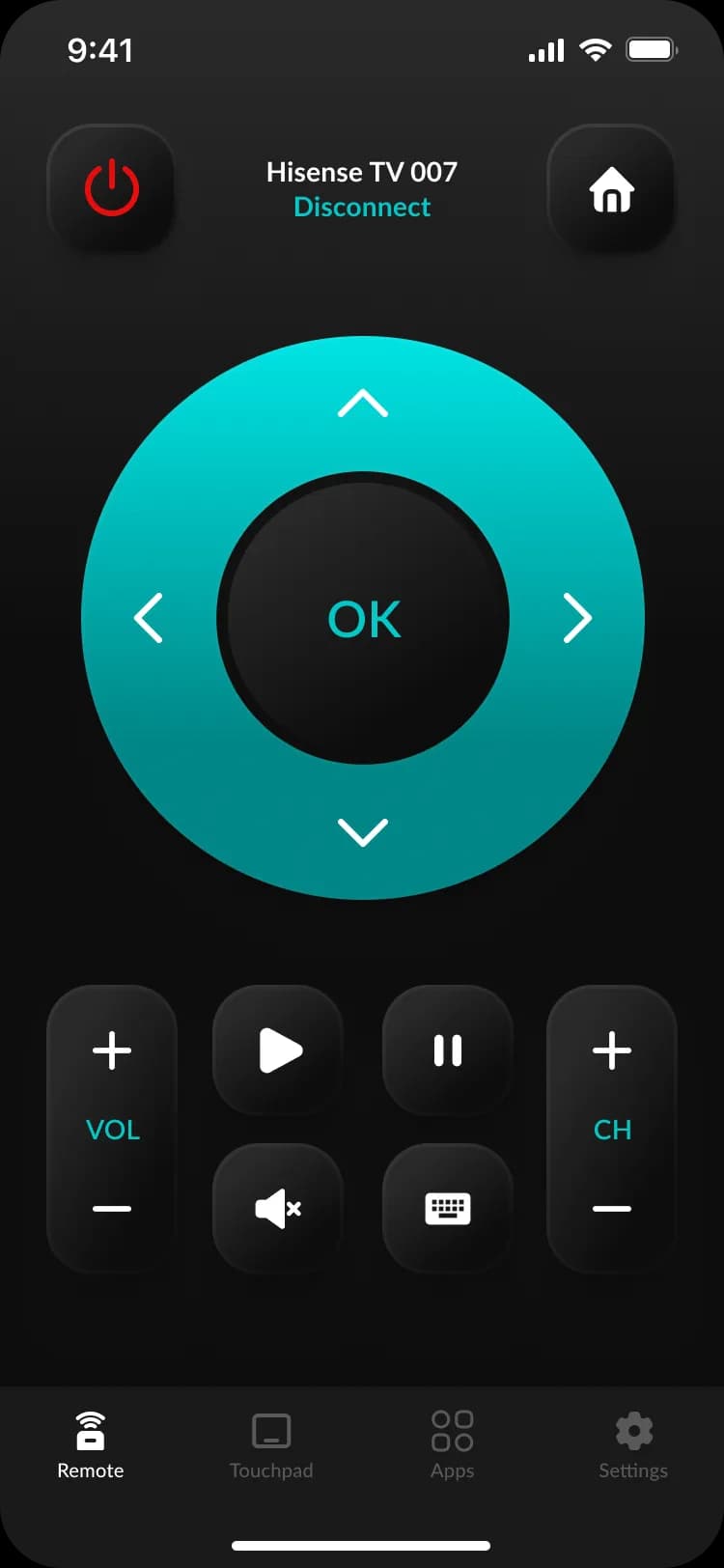
HiRemote is the Hisense TV remote app for iPhone, iPad, and Apple Watch. Pairs in 30 seconds over Wi-Fi. Works with every modern Hisense smart TV platform — VIDAA, Roku TV, Google TV, and Fire TV.
Free download · Pro from $9.99/year · pricing varies by region
Or scan to install
Two shortcuts to your Hisense remote
Test the remote in your browser right now, or find out which Hisense platform you have in 30 seconds.
Skip the App Store — try the remote in your browser
Type your TV's IP, you're controlling it. No install, no signup. Works in any modern browser.
Open the live remoteNot sure which Hisense smart TV you have?
Answer 2 questions about your TV's home screen, we'll tell you whether it's VIDAA, Roku, Google TV, or Fire TV — and exactly what to do next.
Find your platformEverything the official remote should have been.
We built HiRemote because the official Hisense remote left us frustrated. No more lost remotes, dead batteries, or pecking passwords letter-by-letter on the TV.
Pairs in 30 seconds
Same Wi-Fi, tap your TV, enter the on-screen code. Done.
Real keyboard for streaming
Type Netflix or Disney+ passwords from your phone, not the on-screen pecker.
Apple Watch + widgets
Power off from your wrist. Add a Lock Screen volume widget.
Private by design
Commands run on your local Wi-Fi. We have no servers — at all.
Works with every Hisense smart TV platform
VIDAA, Roku TV, Google TV, and Fire TV — one app for all four. Setup is identical: same Wi-Fi, 30-second pairing, no accounts.
VIDAA
Hisense's own smart TV OS
If you see a Discover tab on your home screen
Compatibility guideHisense Roku TV
Roku TV OS · Free online remote inside
If you see purple Roku channel tiles
Compatibility guideHisense Google TV
Google TV / Android TV
If you see Google rows and a Google Assistant button
Compatibility guideHisense Fire TV
Fire OS / Fire TV Edition
If you see Amazon rows and an Alexa button
Compatibility guideNot sure which platform your TV runs? Press the home button on your remote — the home screen layout tells you instantly. Or check Settings → About on the TV.
Everything the original remote does.
Plus a few things it doesn't.
The app never sees what you watch.
Most "remote" apps are ad-loaded shells that send your viewing data to a third-party server. We don't. By design — there's no server for them to phone home to.
- All commands run on your local Wi-Fi between phone and TV.
- No account, email, or phone number required.
- Zero viewing data collected — your TV doesn't tell us, and we don't ask.
- No third-party trackers. No analytics phoning home from inside the app.
Free to download. Pro for the rest.
Pro from $9.99/year — pricing varies by region. Cancel anytime in iOS Settings.
Free
- All buttons of the physical remote
- Pair unlimited Hisense TVs
- Touchpad navigation
- Streaming app shortcuts
- Full QWERTY keyboard
Pro
- Everything in Free
- No ads
- Apple Watch app + complications
- Lock Screen + Home Screen widgets
- Custom button mapping
- Macros (e.g. "movie night")
- Voice search
- Priority support
Common questions
How do I connect my iPhone to my Hisense TV as a remote?
Phone and TV need to be on the same Wi-Fi. Open the app — it scans your network and shows your TV by name in about 5 seconds, then tap to connect. The exact last step depends on your TV's platform:
- VIDAA and Roku TVs trust any device on their network — no PIN, no confirmation, you're in.
- Google TVs show a 4-digit PIN on screen the first time — type it into the app once, then your phone is paired forever.
- Fire TVs show an "Allow this phone to control the TV?" prompt the first time — confirm it once and you're done.
From scan to first button press, ~30 seconds is realistic. After the first pairing, reconnecting is instant whenever your phone is on the same Wi-Fi. For the exact steps on each platform, see our full Hisense remote pairing guide.
Does the Hisense TV remote app work without Wi-Fi?
Yes — your phone and the TV must be on the same Wi-Fi network. The app talks to the TV directly over your home LAN using whatever local control protocol the TV exposes (ECP for Roku, mDNS-based for VIDAA, the Android TV remote protocol for Google TV, ADM for Fire TV). There's no cloud relay in the loop.
Two practical implications: cellular won't work even if you're standing in the same room as the TV, and guest Wi-Fi networks usually isolate devices from each other — the phone reaches the internet fine but can't see the TV. Hotel Wi-Fi has the same problem.
If the TV itself won't join your network, that's a separate issue — see our guide on a Hisense TV that won't connect to Wi-Fi.
Why doesn't my Hisense TV show up in the remote app?
In rough order of likelihood:
- Phone and TV are on different Wi-Fi networks. Including the same SSID's 5GHz band when the TV is on 2.4GHz only, or guest Wi-Fi vs. main, or a work-VLAN your phone joined automatically.
- Router has "AP isolation" or "client isolation" turned on. Common on hotel, café and some shared-house networks. The phone can reach the internet but other devices on the same Wi-Fi are invisible. Mesh routers (eero, Google Wifi, Orbi) usually don't have this on by default.
- TV's "mobile app control" setting is disabled. Look under Settings → Network or System → Advanced (the menu name varies by platform).
- The router needs a kick. Restarting the router fixes about one in five "TV not showing up" reports we get.
If none of those work, our full Hisense TV remote troubleshooting guide walks through the deeper fixes in order — or drop us an email with your TV model and what you've tried, and we usually have a more specific one.
Can I use the app if I lost my Hisense TV remote?
Mostly yes, depending on the platform:
- VIDAA and Roku TVs don't ask for any confirmation, so you don't need the original remote at all — just open the app and pair.
- Google TV and Fire TV show a one-time confirmation prompt on the screen. The TV's onboard power button (here’s where it is on each Hisense model) doubles as "OK" on most Hisense models, or you can plug in a USB keyboard and press Enter to accept. After that first confirmation, the phone is paired forever and you never need physical access again.
If you genuinely lost the remote and you're stuck on the confirmation screen, see our guide on what to do when your Hisense remote is gone — there's a method per platform.
Do my phone and Hisense TV need to be on the same Wi-Fi network?
Yes, every time. The app talks to the TV directly over Wi-Fi, which means your phone has to be on the same local network as the TV whenever you want to use it. No cellular fallback, no remote-from-office, no controlling your home TV from a hotel room.
This is deliberate. Local-only means your button presses don't route through a server we run, which is faster (no round-trip latency) and means we don't see what channel you switched to or which app you opened. The downside is exactly what you're asking about — you have to be home.
Can I control multiple Hisense TVs with one phone?
Yes, as many as you want. The app remembers every TV it's paired with, indexed by MAC address, so you can switch between bedroom, living room, kitchen, garage, etc. with one tap in the device picker at the top of the remote screen.
Adding a new TV is the same flow as the first one — open the app while on the new TV's Wi-Fi, it discovers, you tap. You can mix platforms freely on one phone: VIDAA in the living room, Roku in the bedroom, Google TV in the kitchen — the app figures out which protocol to use per device.
More on the support page.
Stop hunting for that remote.
A free download, 30 seconds of setup, and your phone is now your TV remote — and a better one.
Or scan to install