



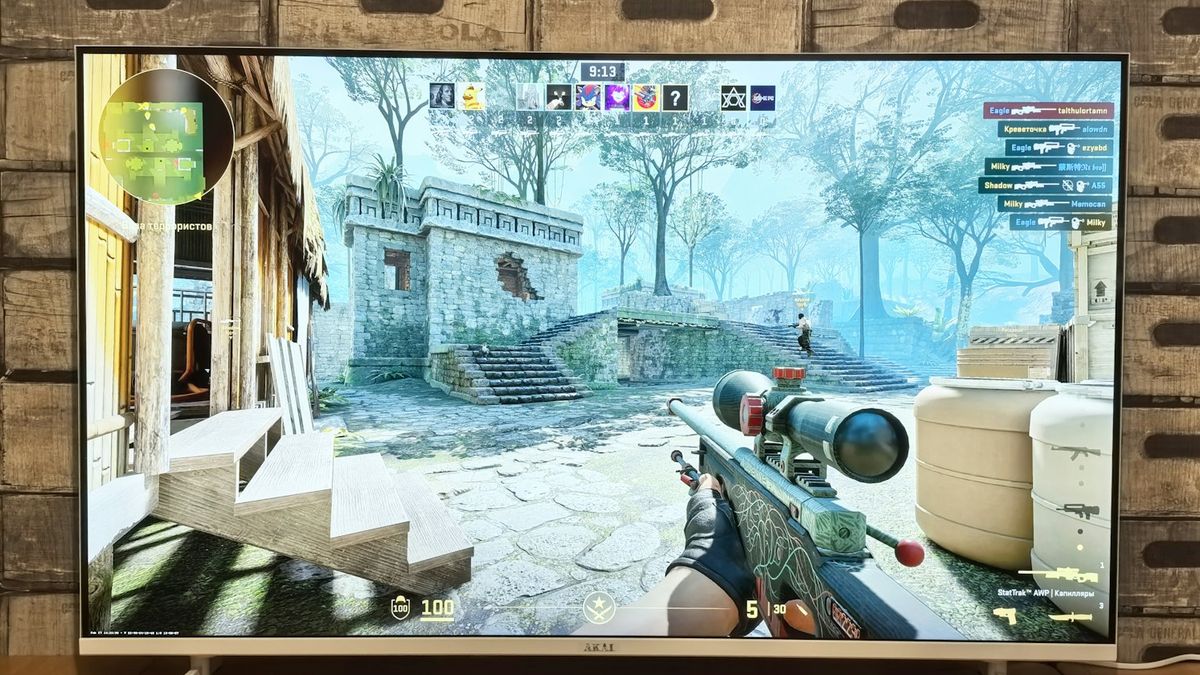
To cut input lag on a Hisense TV, switch the picture mode to Game Mode, which drops lag from around 40-70ms down to 9-13ms. It's one setting away on every Hisense platform. For PS5, Xbox Series X, or Switch, also enable ALLM, VRR, and 4K at 120Hz where your set supports them.
Table of contents(17)+
- 01Quick setting — per platform
- 02What Game Mode actually changes
- 03Setting 2 — Enable ALLM (Auto Low Latency Mode)
- 04Setting 3 — VRR (Variable Refresh Rate)
- 05Setting 4 — 4K @ 120 Hz signal format
- 06Console support at a glance
- 07PS5-specific optimization
- 08Xbox Series X-specific optimization
- 09Switch-specific tuning
- 10HDR in Game Mode — worth it?
- 11Common issues + fixes
- 12FAQ
- 13Which Hisense TVs support 4K @ 120Hz?
- 14Does Game Mode hurt picture quality?
- 15Is Dolby Vision Gaming supported?
- 16Should I use ALLM or manual Game Mode?
- 17Related guides
Hisense TVs default to Cinema or Standard picture mode which carry noticeably more input lag than Game Mode does. For competitive gaming, controller-heavy games, and rhythm titles, that's the difference between hitting the timing and missing it. Enabling Game Mode is one setting away on every Hisense platform — full menu paths below plus the follow-up settings (ALLM, VRR, 4K@120Hz) that actually matter on PS5 / Xbox Series X / Switch. Setting this up on a brand-new TV? Our first-day Hisense TV setup guide covers the initial VIDAA/Roku/Google TV walkthrough before you get to Game Mode. No remote on hand? You can still reach these menus by using the buttons on the TV itself — see our guide on how to turn on a Hisense TV without the remote. Lost the remote entirely and need to navigate the whole TV, not just power it on? Our Hisense TV without a remote guide covers all five ways to control it. Shopping for a gaming set first? Compare panel tiers in our ULED vs QLED vs OLED guide. If you're on a Hisense Roku TV and the remote itself is acting up mid-setup — not pairing, buttons unresponsive — our Roku remote troubleshooting guide covers the fixes before you dig into Game Mode menus.
Quick setting — per platform
- VIDAA (U6/U7/U8/U9): Settings → Picture → Picture Mode → Game
- Hisense Roku TV: Settings → TV picture settings → Picture mode → Game
- Hisense Google TV: Settings → Display & Sound → Picture → Picture Mode → Game
- Hisense Fire TV Edition: Settings → Display & Sounds → Display → Picture Mode → Game
Do it now. Then read below for ALLM / VRR / HDMI 2.1 tuning if you have a modern console.
What Game Mode actually changes
Game Mode disables the TV's motion smoothing, contrast enhancement, noise reduction, and image scaling passes that add latency. The picture looks slightly less "cinematic" but the response is noticeably snappier. On modern Hisense (2022+) with a proper 4K/120 Hz TV, Game Mode gets you into competitive-tier latency territory.
Setting 2 — Enable ALLM (Auto Low Latency Mode)
ALLM lets the console automatically switch the TV into Game Mode when a game launches — no manual menu diving. Requires HDMI 2.1 on both ends.
- VIDAA U7K+ / U8K+: Settings → Picture → Advanced Settings → Instant Game Response → On
- Roku TV: Settings → TV inputs → HDMI [port] → Auto Low Latency Mode → On
- Google TV: Settings → Channels & Inputs → Inputs → Auto Low Latency Mode → On
On the console side: PS5 auto-negotiates; Xbox Series X requires enabling in Settings → General → TV & display options → Auto low-latency mode; Switch does not support ALLM (manual Game Mode toggle needed).
Setting 3 — VRR (Variable Refresh Rate)
VRR eliminates screen tearing without traditional V-Sync latency penalty. Supported on Hisense U7K, U8K, U9K, U7N, U8N, U9N (2022+ models) via HDMI 2.1.
- VIDAA: Settings → Picture → Advanced Settings → VRR → On (or AMD FreeSync if listed)
- Google TV: Settings → Display & Sound → Advanced → Variable Refresh Rate → On
PS5 supports VRR in games that offer it. Xbox Series X supports it broadly. Switch does not.
Setting 4 — 4K @ 120 Hz signal format
PS5 and Xbox Series X can output 4K @ 120 Hz on games that support it. Your TV needs HDMI 2.1 (labeled on the specific port) and Enhanced HDMI mode enabled.
- VIDAA: Settings → System → HDMI Settings → HDMI 2.1 Format → Enhanced (per port)
- Google TV: Settings → Channels & Inputs → HDMI [port] → HDMI Signal Format → 4K 120Hz
Not every HDMI port supports 2.1. On U8K, HDMI 3 and 4 are typically 2.1; HDMI 1 and 2 are 2.0. Check the printed label on the port. If you're not sure which bay on the back panel is which, our guide on where the AV inputs are located on a Hisense TV maps out all the ports. Don't want to keep digging through the input menu every time you swap between console and streaming? Our Alexa on Hisense TV setup guide covers the voice command that switches HDMI inputs for you.
Console support at a glance
Which latency features each console can actually use on a modern Hisense (2022+) set:
| Feature | PS5 | Xbox Series X | Switch |
|---|---|---|---|
| ALLM (auto Game Mode) | Automatic | Enable in settings | Not supported |
| VRR (variable refresh) | Per-game | Broad support | Not supported |
| 4K at 120 Hz | Yes | Yes | No (1080p 60 max) |
| Dolby Vision Gaming | No | Yes (U7K+) | No |
| Best picture mode | Game | Game | Game |
PS5-specific optimization
- Console-side: Settings → Screen and Video → Video Output → Resolution → 2160p, RGB Range → Full
- Enable HDR: Video Output → HDR → On When Supported
- Enable 120 Hz: Video Output → 120 Hz Output → Automatic
- TV-side: enable VRR + ALLM + Enhanced HDMI on the port PS5 is plugged into
Xbox Series X-specific optimization
- Console: Settings → General → TV & display options → 4K UHD @ 120 Hz + Allow Auto Low Latency Mode + Allow Variable Refresh Rate + Allow 4K + Allow HDR10
- Enable Dolby Vision Gaming if your Hisense supports it (U7K+ mostly)
Switch-specific tuning
Switch outputs at max 1080p @ 60Hz — no VRR, no ALLM, no 4K. Best Hisense settings for Switch:
- Picture Mode: Game
- Motion Smoothing: Off
- Sharpness: 0-10 (Switch's built-in scaler is soft — sharpening adds noise)
- Local Dimming: Standard or High (dim OLED-like blacks help Switch games)
HDR in Game Mode — worth it?
Yes. Modern Hisense TVs handle HDR in Game Mode without adding measurable latency. Enable HDR in the console and let the TV auto-detect. Some VIDAA models default to a "HDR Bright" mode that over-brightens skin tones in games — use "HDR Standard" or Dolby Vision Gaming if available.
Common issues + fixes
- Game Mode makes colors look washed out. Bump Color Temperature to "Warm 2" and enable HDR — colors normalize.
- ALLM not auto-switching. Verify both HDMI-CEC and Enhanced HDMI Format are on. Some 2020-2022 firmware had bugs — update to latest firmware.
- VRR flickers in bright scenes. Known LG/Hisense OLED-panel issue. Disable VRR only in games where flicker is severe; keep it on otherwise.
- 4K @ 120 Hz not detected. Cable may be HDMI 2.0. Use only Ultra High Speed HDMI 2.1 cable (rated 48 Gbps).
- Picture mode won't switch to Game at all / settings menu frozen. If the picture settings themselves are unresponsive, the fix isn't in this menu — see our Hisense TV reset button by model guide to clear a stuck settings state before retrying Game Mode.
FAQ
Which Hisense TVs support 4K @ 120Hz?
U7K, U8K, U9K, U7N, U8N, U9N (2022 and newer). Older U-series and all R/A models are limited to 4K @ 60Hz.
Does Game Mode hurt picture quality?
Slightly less "processed" look — no motion smoothing, no contrast enhancement. Most gamers prefer this. Colors are accurate; you're not losing HDR.
Is Dolby Vision Gaming supported?
Yes on U7K, U8K, U9K, U7N, U8N when playing Dolby Vision games (mostly Xbox). Enable in console settings; TV auto-detects.
Should I use ALLM or manual Game Mode?
ALLM is better — auto-switches when a game launches, then reverts when you go back to streaming. Manual toggle is fine if your console/TV doesn't support HDMI 2.1.
