



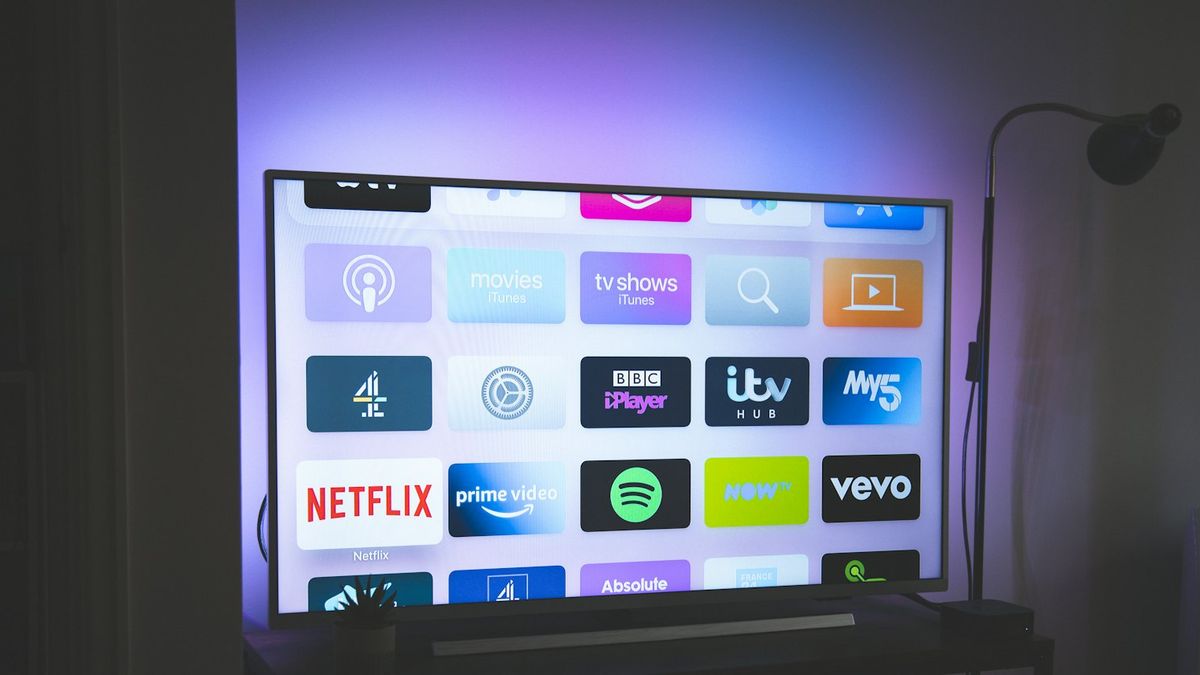
A Hisense TV that freezes, lags, or crawls usually has one of four causes: too little free memory, a Wi-Fi signal strong enough to connect but not stream, a corrupted app cache, or aging hardware. Nearly all cases clear up with a power cycle plus clearing the misbehaving app's cache.
Table of contents(28)+
- 01Diagnose your symptom first
- 02Fix 1 — Clear the misbehaving app's cache
- 03Hisense Roku TV
- 04Hisense VIDAA TV
- 05Hisense Google TV / Android TV
- 06Hisense Fire TV
- 07Fix 2 — Full power cycle (when nothing responds)
- 08Fix 3 — Free up storage
- 09Fix 4 — Check your Wi-Fi signal at the TV's location
- 10Fix 5 — Update firmware
- 11Fix 6 — Factory reset (last software option)
- 12Fix 7 — Disable Auto Smart-Picture features
- 13Fix 8 — When it's the hardware (aging eMMC storage)
- 14Per-platform tendencies
- 15Hisense Roku TV
- 16Hisense VIDAA TV
- 17Hisense Google TV
- 18Hisense Fire TV
- 19How to control a frozen Hisense TV
- 20FAQ
- 21Why does my Hisense TV keep freezing?
- 22Why is my Hisense TV so slow?
- 23How do I fix a Hisense Roku TV that keeps freezing?
- 24Should I factory reset my Hisense TV if it freezes?
- 25How do I clear the cache on a Hisense TV?
- 26Why does my Hisense TV keep going back to the home screen?
- 27Is freezing a sign my Hisense TV is dying?
- 28Related guides
A Hisense TV that freezes, lags, or runs painfully slow has one of four causes: insufficient free memory (apps eat RAM until the OS can't keep up), Wi-Fi signal that's just-strong-enough-to-connect-but-not-stream, a corrupted app cache, or aging hardware. nearly all freezing complaints fix with a power cycle plus clearing the misbehaving app's cache. A stubborn few need a factory reset or, for very old TVs, hardware acceptance.
Diagnose your symptom first
Freezing isn't one problem — it's at least four different patterns. The fix depends on which pattern matches:
- Full freeze — Picture stops, audio stops, remote does nothing. → Usually a full-OS hang. Skip to Fix 2.
- App freezes but TV menu still works — You can press Home and exit, the app itself is hung. → Fix 1 (clear app cache).
- Slow channel switching / app loading — Nothing freezes but everything takes 5-15 seconds. → Storage full or Wi-Fi issue. Fix 4 + Fix 5.
- Random reboots back to home screen — Watching something then suddenly back at the Hisense home screen. → Memory pressure. Fix 3.
| Symptom | Likely cause | Fix |
|---|---|---|
| Full freeze — picture, audio, and remote all dead | Full-OS hang | Fix 2 — full power cycle |
| App freezes but the TV menu still works | The app itself is hung | Fix 1 — clear app cache |
| Slow channel switching / app loading (5-15 seconds) | Storage full or Wi-Fi issue | Fix 4 + Fix 5 |
| Random reboots back to the home screen | Memory pressure | Fix 3 — free up storage |
Fix 1 — Clear the misbehaving app's cache
The single most common freezing cause is one badly-coded app (Netflix, Prime, Hulu, Disney+, sports apps especially) leaking memory until it can't allocate any more. Clearing its cache wipes the leak.
Hisense Roku TV
Roku doesn't expose per-app cache management — but a full system restart drops all app state: Home → Settings → System → System restart. Takes 30 seconds.
Hisense VIDAA TV
Settings → Apps → [problem app] → Clear cache → confirm. App opens with a fresh state next time.
Hisense Google TV / Android TV
Settings → Apps → See all apps → [problem app] → Clear cache → optionally also Clear data (wipes login + downloads).
Hisense Fire TV
Settings → Applications → Manage Installed Applications → [problem app] → Clear cache and Clear data.
Fix 2 — Full power cycle (when nothing responds)
If the TV is fully frozen and even the physical power button doesn't respond:
- Unplug the TV from the wall.
- Wait 60 seconds (drains residual charge).
- Hold the physical power button for 30 seconds with the TV unplugged.
- Plug back in.
- Power on.
This forces a clean boot from cold state. the great majority of complete freezes resolve after this — they were caused by software state corruption that the cold boot wiped. While the TV is unplugged, it's also worth checking that your HDMI and AV cables are seated firmly — if you're not sure where the AV input is located on your model, a loose connection there can occasionally produce symptoms that look like freezing.
Fix 3 — Free up storage
Smart TVs have surprisingly little internal storage (8-32 GB on most Hisense models). Once free space runs low, everything slows down: app loading, channel switching, search, settings menu.
Check available storage:
- Roku TV: No direct user view, but uninstall any rarely-used channels: Home → highlight channel → press * → Remove channel.
- VIDAA: Settings → Storage shows free space — clear out apps you don't use if it's running low.
- Google TV / Fire TV: Settings → Device → Storage shows used vs free. Uninstall apps you don't use.
Even uninstalling 2-3 apps you don't use can free enough space to restore smooth playback.
Fix 4 — Check your Wi-Fi signal at the TV's location
"My TV is slow" often means "my Wi-Fi to the TV is slow" — apps are waiting for data and the user perceives this as the TV being sluggish. The TV itself is fine.
Test: stand next to the TV with your phone. Run a speed test (fast.com or speedtest.net). As a baseline, Netflix recommends at least:
- 15 Mbps for 4K (Ultra HD) streaming
- 5 Mbps for Full HD (1080p) streaming
- 3 Mbps for HD (720p) streaming
- A stable connection with low latency for a responsive UI
If signal is weak: try a Wi-Fi mesh extender, run Ethernet to the TV, or use a powerline adapter ($15-30). Most Hisense slowness complaints disappear with Ethernet.
Fix 5 — Update firmware
Hisense periodically pushes firmware updates, and some have fixed memory leaks and app-freezing bugs. If the set is offline, you can still update the software via USB.
- Roku TV: Home → Settings → System → System update → Check now.
- VIDAA: Settings → System → Software update.
- Google TV: Settings → System → About → System update.
- Fire TV: Settings → My Fire TV → About → Check for system update.
Important: don't interrupt the update, ever. An interrupted firmware update can leave the TV stuck on the boot logo.
Fix 6 — Factory reset (last software option)
If clearing cache, power-cycling, freeing storage, fixing Wi-Fi, and updating firmware all failed — factory reset is the last software option before considering hardware.
- Roku TV: Settings → System → Advanced system settings → Factory reset everything.
- VIDAA: Settings → System → Reset and Admin → Factory data reset.
- Google TV: Settings → System → Reset → Factory data reset.
- Fire TV: Settings → My Fire TV → Reset to Factory Defaults.
You'll lose all installed apps, logins, and settings. Setup takes 15 minutes after reset.
Fix 7 — Disable Auto Smart-Picture features
Hisense TVs ship with auto-AI features that analyze every frame and adjust contrast, motion, and color in real time. On U-series and QLED models with strong processors this is fine. On budget A/H-series with weaker chips it causes visible lag during fast scenes.
Turn off:
- Motion enhancement (Smooth Motion, MEMC, "Game motion plus")
- AI Picture Optimizer
- Adaptive Backlight
- Dynamic Contrast
Performance improves noticeably on lower-tier models. Higher-tier U7/U8/QD65 can keep these on.
Fix 8 — When it's the hardware (aging eMMC storage)
TVs 5+ years old start showing eMMC storage degradation — same flash memory issue that affects old phones. Symptoms specific to this:
- TV takes 60+ seconds to power on (was instant when new)
- System menus lag even when no apps are running
- Factory reset doesn't help (storage is physically slow now)
- Random reboots increase frequency over months
This is unrepairable on most Hisense models — eMMC is soldered to the mainboard. For TVs at this point, replacement is the only fix.
Per-platform tendencies
Hisense Roku TV
Most stable for general use. Freezes when individual channels go bad (especially during major sports streaming events). Solution: full system restart works for nearly all Roku TV freeze complaints.
Hisense VIDAA TV
Most prone to slow performance after 2-3 years. Limited app cache management. Heavy ad load on free tier slows the home screen specifically. Disabling "Recommended content" on home screen helps.
Hisense Google TV
Mid-range performance. App management is best of all platforms (full Android-style controls). Freezing usually traces to one specific app — easy to identify and clear.
Hisense Fire TV
Heavy Amazon ad surface in the home screen creates perceived slowness even when the TV is fine. Turning off "Featured Content" in home settings makes the UI feel 2x faster.
How to control a frozen Hisense TV
While the TV is hung, the original remote often becomes unresponsive too — the freeze includes the remote-input handler. Workarounds:
- Press the physical power button on the TV (location varies — see button locations).
- If the physical button works but the remote doesn't, the same button-press techniques used to turn on a Hisense TV without the remote will get it powered back on. A full power cycle then fixes the underlying freeze. On a Hisense Roku TV, if the remote is still dead after fresh batteries, the cause usually isn't power at all — see roku remote not working with new batteries for the next troubleshooting steps.
- For ongoing control after recovery, the iPhone Remote for Hisense TV app has its own input pipeline that often works when the IR remote handler is frozen (different network protocol, doesn't depend on the same OS thread).
FAQ
Why does my Hisense TV keep freezing?
The most common cause is memory pressure — one app (usually streaming) is leaking RAM until the OS can't keep up. Try clearing that specific app's cache first (Fix 1). If you can't identify which app, do a full system restart (Fix 2). nearly all repeated-freeze complaints resolve here.
Why is my Hisense TV so slow?
Either Wi-Fi is the bottleneck (apps wait for data, you perceive it as TV slowness) or internal storage is nearly full (low free space slows everything). Test Wi-Fi speed next to the TV (Fix 4) and check storage (Fix 3). Often both contribute.
How do I fix a Hisense Roku TV that keeps freezing?
Home → Settings → System → System restart. Takes 30 seconds. Roku TVs handle this gracefully without losing logins. If freezes return within a day, the issue is one specific Roku channel — uninstall and reinstall it. If freezes are random across channels, do a Roku factory reset (Fix 6).
Should I factory reset my Hisense TV if it freezes?
Not as first step — most freezes fix with clearing app cache or power cycling, which don't lose your apps and logins. Factory reset only after you've tried Fixes 1-5 (clear cache, power cycle, free storage, fix Wi-Fi, update firmware) and freezes still happen.
How do I clear the cache on a Hisense TV?
Per platform: VIDAA — Settings → Apps → [app] → Clear cache. Google TV — Settings → Apps → See all → [app] → Clear cache. Fire TV — Settings → Applications → Manage Installed → [app] → Clear cache. Hisense Roku TV doesn't expose per-app cache; use system restart instead which drops all app state.
Why does my Hisense TV keep going back to the home screen?
That's the OS killing an app that exceeded its memory budget — usually a streaming app during a long session. The TV returns you to the home screen as a "graceful crash". Fix by clearing that app's cache (Fix 1) and updating firmware (Fix 5). If it persists across multiple apps, you have an OS-level memory issue requiring factory reset.
Is freezing a sign my Hisense TV is dying?
Usually no — most freezing is software, fixable in minutes. Real hardware failure (Fix 8 — aging eMMC storage) usually appears as increasing frequency of freezes over months alongside other symptoms: long boot times, lag even in menus, random reboots. If you've had the TV under 4 years and freezes are sporadic, it's software. If 5+ years and getting worse weekly, it's eMMC degradation.