

Table of contents(15)+
- 01The 30-Second Compatibility Check
- 02Method 1: Confirm Your Chromecast and iPhone Share the Same Wi-Fi
- 03Method 2: Cast From an App That Supports Google Cast
- 04Method 3: Set Up or Reset Chromecast Through the Google Home App
- 05Method 4: Know What Chromecast Can't Mirror From an iPhone
- 06Method 5: Skip Chromecast Entirely If You Own a Hisense TV
- 07Chromecast vs. AirPlay vs. HiRemote: Quick Comparison
- 08Frequently Asked Questions
- 09Can I cast from my iPhone to a Chromecast?
- 10Does Chromecast support AirPlay?
- 11Why doesn't my iPhone show a Cast button?
- 12Can Chromecast mirror my entire iPhone screen?
- 13Is there a Chromecast app for iPhone?
- 14Does Chromecast work with a Hisense TV if I use an iPhone?
- 15Related Guides
Yes, Chromecast works with an iPhone, but only through individual apps, not through a system-wide cast button like Android has. You open an app such as YouTube, Netflix, or Google Photos, tap its cast icon, and pick your Chromecast. Setup and first-time pairing happen in the Google Home app.
Most of the confusion here comes from iPhone owners expecting a native Cast button like the one built into Android. iOS has no system-level Google Cast support, so an iPhone 13 or iPhone 15 depends entirely on the app you're using. A Chromecast with Google TV and an older Chromecast Ultra behave the same way from an iPhone. The limit is app support, not the hardware generation.
The 30-Second Compatibility Check
- Open the app you want to cast from (not Google Home) and look for a cast icon inside it.
- Confirm your iPhone and Chromecast show the same Wi-Fi network name in their settings.
- If you don't see a cast icon anywhere in that app, the app itself doesn't support casting to Chromecast. Switching networks won't fix that.
Already know you're dealing with a Hisense Smart TV? You can skip most of this and jump straight to Method 5 below, where a free app replaces casting with direct remote control.
Method 1: Confirm Your Chromecast and iPhone Share the Same Wi-Fi
Your Chromecast and your iPhone need to sit on the same wireless network. This is the single most common reason casting fails. Guest networks and separate band names can split devices apart even when both say they're connected.
Open your iPhone's Wi-Fi settings and compare the network name to the one shown during your Chromecast's setup. If the names don't match, switch your phone to the right network before trying again.
When this won't help: some routers isolate smart-home devices onto a separate band or network for security. If that's the case, you may need to adjust your router settings so your phone and Chromecast can actually see each other.
Method 2: Cast From an App That Supports Google Cast
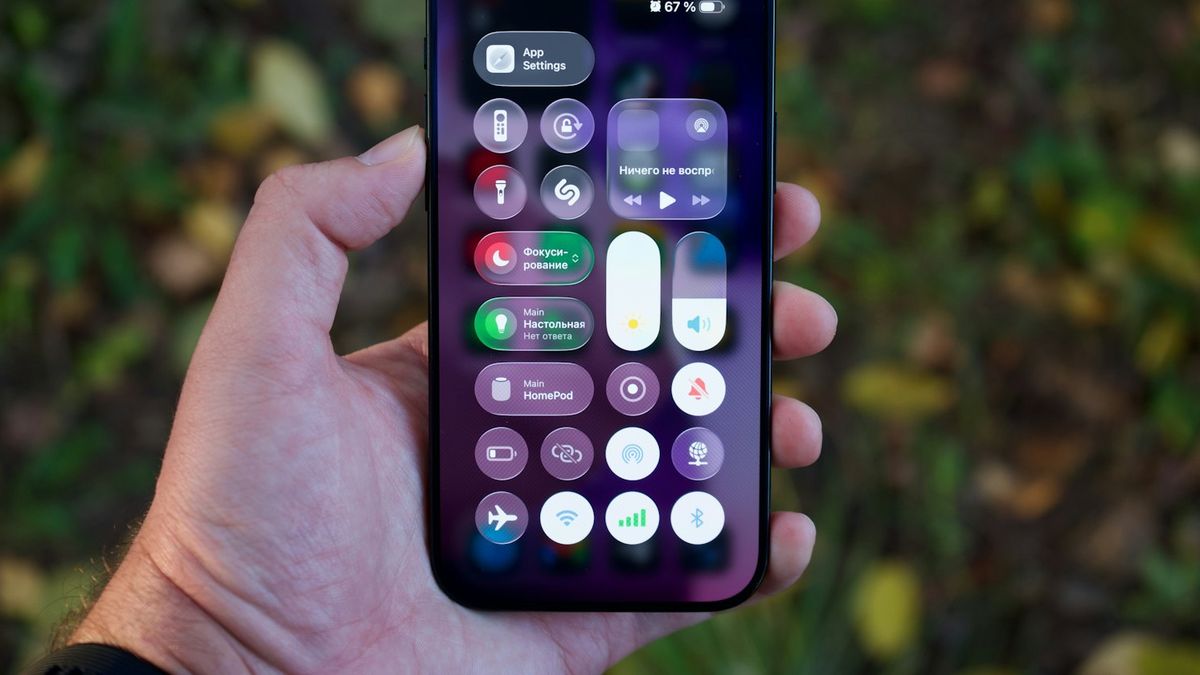
iPhone has no universal cast button in Control Center. Casting works one app at a time. Open an app like YouTube, Netflix, Spotify, or Google Photos, look for a cast icon inside that app, and select your Chromecast from the list.
Not every app includes this. An app needs to build in support for Google's Cast technology. Some popular streaming apps have never added it on iOS. If you don't see a cast icon anywhere in an app, that app simply doesn't support casting to Chromecast. No setting will add it. You'll find more detail on mirroring and casting differences if you're also trying to send your whole screen over.
For the setup basics straight from Google, Google's Chromecast support site covers first-time pairing in more depth.
Method 3: Set Up or Reset Chromecast Through the Google Home App
The Google Home app handles device setup, not everyday casting. Download it from the App Store and sign in with the Google account you'll use across your casting apps. Then follow the prompts to add your Chromecast.
Honest caveat: Google Home itself doesn't cast most content from an iPhone. It's the control center for your smart-home devices and your Chromecast's settings. Playback still happens through each individual app's own cast icon, not through Google Home.
If the real problem is juggling a cast icon in every single app, Hisense TV owners have a shortcut. See Method 5 below for a way to launch streaming apps and type logins without casting at all.
Method 4: Know What Chromecast Can't Mirror From an iPhone
Android phones can mirror almost anything to a Chromecast, screen and all. An iPhone can't do that. Apple's mirroring protocol is AirPlay, and Chromecast doesn't speak it.
That means you can't send your whole iPhone screen — random apps, websites, or the Photos app — straight to a Chromecast. You can send it that way to an Apple TV with AirPlay. Casting from an iPhone only works inside apps that specifically support it.
Apple documents its own screen-mirroring requirements separately, and the two systems don't overlap. Check Apple's AirPlay support page for what AirPlay itself needs.
Method 5: Skip Chromecast Entirely If You Own a Hisense TV
If the real frustration is hunting for a cast icon in every app, Hisense TV owners have another option. The free HiRemote app turns your iPhone into a direct remote for Hisense VIDAA, Roku TV, and Android TV models. It replaces casting entirely.
With HiRemote, you open Netflix, YouTube, Prime Video, or Disney+ directly from the app's launch shortcuts. No hunting for a cast icon inside each one. You can also type with your phone's full keyboard. That's faster than casting when you just need to log in to an app.
Honest limit: this replaces remote control and app launching. It doesn't mirror your iPhone screen. If you specifically need to send your screen itself to the TV, Chromecast or AirPlay is still the right tool. See casting to a Hisense TV for that route.
Chromecast vs. AirPlay vs. HiRemote: Quick Comparison
| Method | Works From iPhone? | What You Need | Best For |
|---|---|---|---|
| Chromecast (per-app) | Yes, app by app | A Chromecast device plus a supported app | Streaming audio or video without new hardware |
| AirPlay | Yes, natively | An Apple TV or AirPlay 2 smart TV | Mirroring your entire iPhone screen |
| HiRemote (Hisense TVs) | Yes, as a remote | A Hisense Smart TV and the free app | Launching apps and typing without casting |
Frequently Asked Questions
Can I cast from my iPhone to a Chromecast?
Yes, you can cast from an iPhone to a Chromecast, but only inside apps that support Google's Cast technology. Open an app like YouTube or Spotify, tap its cast icon, and pick your device. There's no system-wide casting toggle on iOS the way there is on Android, so support varies app by app.
Does Chromecast support AirPlay?
No, Chromecast does not support AirPlay. AirPlay is Apple's own mirroring protocol, built for Apple TV and a handful of AirPlay 2 smart TVs. Chromecast uses Google's separate Cast protocol instead, so the two systems don't talk to each other. If you need AirPlay specifically, you'll need an AirPlay-compatible device.
Why doesn't my iPhone show a Cast button?
Your iPhone doesn't show a Cast button because iOS has no built-in Google Cast support. Android bakes casting into the system; iOS leaves it to individual apps. If the app you're using hasn't added Google's Cast technology, no cast icon will appear, and no settings toggle will add one.
Can Chromecast mirror my entire iPhone screen?
Not directly. Chromecast can't mirror a full iPhone screen the way AirPlay mirrors to an Apple TV. You can only cast content from inside apps that specifically support Google Cast, like YouTube or Google Photos. For true full-screen mirroring from an iPhone, you need an AirPlay-compatible TV or streaming device instead.
Is there a Chromecast app for iPhone?
There's no single standalone Chromecast app. Google Home is the closest equivalent, and it's mainly for setup and smart-home controls. Actual casting still happens inside whichever streaming or media app you're using, through that app's own cast icon. Google Home won't cast video or music by itself.
Does Chromecast work with a Hisense TV if I use an iPhone?
Yes, if your Hisense TV has Chromecast built in — or a Chromecast plugged into its HDMI port — your iPhone can cast to it. It works the same way as any other Chromecast. As an alternative, HiRemote lets you control a Hisense TV directly and launch apps without relying on casting at all.