



Table of contents(12)+
- 01The 30-second test: which OS does your Hisense run?
- 02Method 1: Download apps from the VIDAA App Store
- 03Method 2: Add apps on Hisense Google TV and Roku models
- 04Method 3: Install YouCine and other apps outside the store
- 05Method 4: Update your Hisense smart TV software
- 06Frequently Asked Questions
- 07How do I download apps on my Hisense smart TV?
- 08Why can't I download YouCine on my Hisense smart TV?
- 09How do I know which operating system my Hisense TV has?
- 10How do I update apps on a Hisense smart TV?
- 11Does a Hisense smart TV run on Android?
- 12Related guides
The Hisense TV app store — VIDAA's App Store, Google Play, or Roku's Channel Store, depending on your model — streams apps like Netflix, YouTube, DStv, and Showmax straight from the home screen once you're on Wi-Fi. Most sets sold in South Africa run VIDAA, Hisense's own system, while newer models use Google TV or Roku. Your operating system decides which apps you can add and how you update.
I've lived with a few Hisense sets — a 55A7H in the lounge and a 43A4K in a bedroom, both on VIDAA U6. My folks have a Google TV model too. They look almost identical from the couch, but the software underneath is different, and that changes everything about adding apps and updates. This guide covers all three systems you'll meet in South Africa, plus the honest bits — like why YouCine won't install on some models no matter what you try.
The 30-second test: which OS does your Hisense run?
Press the Home button and look at the layout. This tells you which steps below apply to you.
- VIDAA: A colourful home row with a Hisense/VIDAA logo and an 'App Store' tile. This is most Hisense TVs in SA.
- Google TV / Android TV: A 'For you' banner across the top, the Google Play Store, and a Google Assistant mic.
- Roku TV: A purple background with a grid of channel tiles and a 'Streaming Channels' option.
Still not sure? Your model number decodes it. See our Hisense model number guide, or compare the three systems side by side in VIDAA vs Roku vs Google TV.
| What you want | VIDAA | Google TV | Roku TV |
|---|---|---|---|
| App store | VIDAA App Store | Google Play Store | Roku Channel Store |
| Catalogue size | Smaller (curated) | Largest | Medium |
| Sideload APKs (e.g. YouCine) | No | Yes | No |
| Update path | Settings > Support > System Update | Settings > System > About | Settings > System > System update |
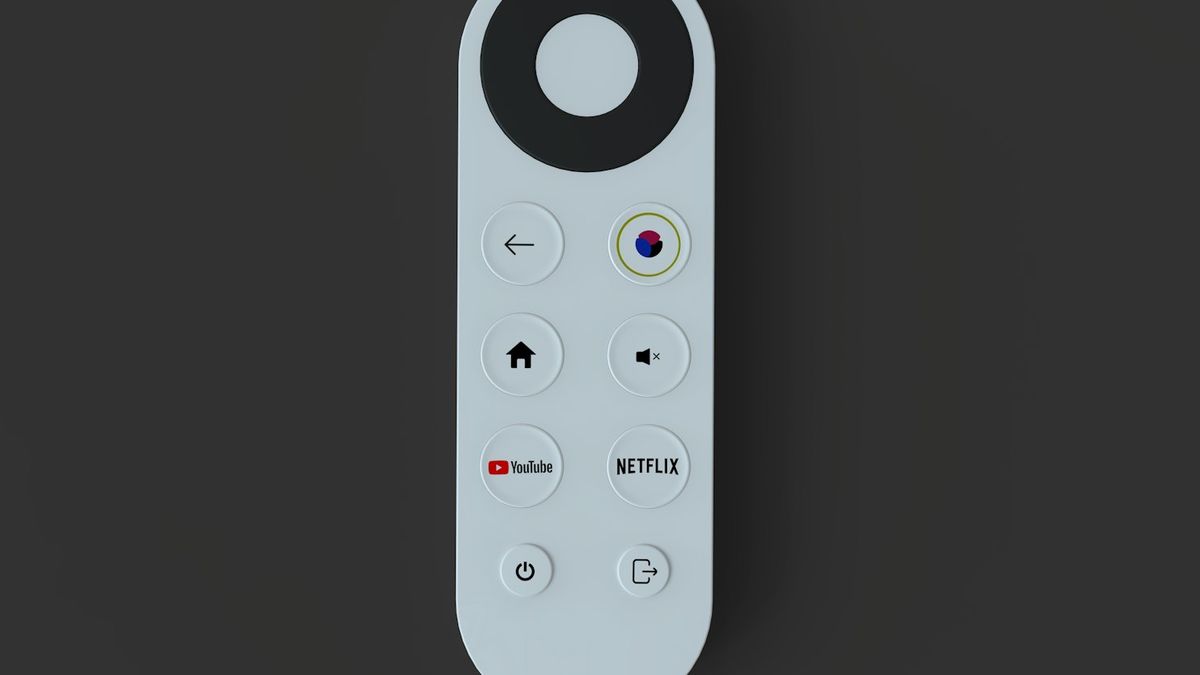
Tip: Typing app names with the stock remote is slow going. The HiRemote app turns your phone into a full Hisense remote with a proper keyboard, so searching 'Showmax' or 'YouCine' takes seconds instead of arrow-key hunting. It works on VIDAA and Roku sets, with no login. Prefer not to install anything? Use the free Roku remote online instead.
Method 1: Download apps from the VIDAA App Store
VIDAA is the most common system on Hisense TVs in South Africa. Its store is curated, so the big apps are one search away.
- Press the Home button on your remote.
- Scroll to the App Store tile (some models show a '+' Add App icon).
- Browse the categories, or open Search and type the app name — Netflix, YouTube, Showmax, DStv, Prime Video, Disney+.
- Highlight the app, press OK, then choose Install or Add to My Apps.
- Wait for it to install, then find it on your home row.
Honest limit: VIDAA's catalogue is smaller than Google's. If the app you want isn't listed, no menu trick will add it — VIDAA blocks outside installs. That's the trade-off for a simpler, faster system, not something you did wrong. For a missing app, casting from your phone is the workaround (Method 3). If you want every install step for all three Hisense systems laid out in one place, our Hisense app installation guide covers it in more depth.
Apps won't download at all? It's almost always Wi-Fi. Fix the connection first with our Hisense Wi-Fi guide. Trying to pair headphones or a soundbar instead of installing an app? That's a separate menu — see our Hisense TV Bluetooth guide.
Method 2: Add apps on Hisense Google TV and Roku models
These systems have bigger stores and, in Google's case, the option to sideload.
Google TV / Android TV:
- From the home screen, open the Apps tab or the Google Play Store.
- Use Search (or the Assistant mic) to find the app.
- Select it and press Install. It downloads to your Apps row.
Roku TV:
- Press Home, then scroll to Streaming Channels.
- Choose Search Channels and type the app name.
- Select the channel and press Add Channel.
Roku calls apps 'channels', but it's the same idea. One catch: Roku never allows APK sideloading, so anything outside the Channel Store can only reach your TV by casting.
Method 3: Install YouCine and other apps outside the store
YouCine is a free movie and sports app that's popular across Southern Africa. It's an Android APK, not a store app — so where you can install it depends entirely on your OS.
- Google TV / Android TV Hisense: You can sideload it. Open Settings > Apps > Security & restrictions (wording varies by year) and turn on Unknown sources for a file manager or the Downloader app. Install Downloader from Google Play, enter the YouCine APK link, and follow the prompts.
- VIDAA and Roku Hisense: You can't install YouCine directly — these systems block outside apps. If you're on VIDAA specifically, it's worth reading what installing apps on a VIDAA TV can actually do before you go looking for workarounds. Instead, install YouCine on your Android phone, then use its built-in Cast button or screen-mirror your phone to the TV.
Two honest cautions. First, only sideload an APK from a source you trust — you're installing outside Google's checks. Second, download links for apps like this move around, so take the file from the developer's own current page rather than a mirror site.
For the cast route, our cast to Hisense TV guide walks through every model.
Lost or dead remote? Sideloading and firmware updates mean a lot of menu digging — hard without a working remote. Our Hisense TV remote control guide covers other ways to control the set, and if you're setting up a replacement from scratch, our remote setup guide walks through pairing it six different ways. Open the HiRemote app on your phone, or the online Roku remote, and you can still reach Settings, type into search boxes, and confirm prompts. No batteries needed.
Method 4: Update your Hisense smart TV software
Updates fix app crashes, add features, and keep streaming apps working. The path depends on your OS.
VIDAA: Settings (gear icon) > Support > System Update > Check Firmware Upgrade. Turn on Auto Firmware Upgrade so it updates overnight.
Google TV: Settings > System > About > System update.
Roku: Settings > System > System update > Check now.
No internet? You can update VIDAA models from a USB drive: download the firmware for your exact model, unzip it to a FAT32 USB stick, plug it in, and the TV picks it up on the next restart. Full steps are in our Hisense update guide, and our USB firmware walkthrough covers loading the file onto the stick itself.
Match the firmware to your exact model number — the wrong file can brick the set. Grab official downloads from Hisense South Africa, or check your OS maker's docs at VIDAA. If an update gets interrupted and the TV won't get past the startup logo afterwards, our boot loop fix covers recovery.
Once your apps are installed and the firmware is current, the best Hisense TV settings for movies, sports, and gaming make the biggest visible difference.
Frequently Asked Questions
How do I download apps on my Hisense smart TV?
Open your TV's app store from the Home screen, search for the app, and select Install. On VIDAA it's the App Store tile, on Google TV models it's the Google Play Store, and on Roku models it's Streaming Channels. The app then appears on your home row. Every download needs a working Wi-Fi connection.
Why can't I download YouCine on my Hisense smart TV?
YouCine isn't in the VIDAA or Roku app stores, and neither system allows outside app installs. Only Hisense Google TV or Android TV models can sideload the YouCine APK. On VIDAA or Roku sets, install YouCine on your phone instead, then cast or screen-mirror it to the TV.
How do I know which operating system my Hisense TV has?
Press the Home button and check the layout. VIDAA shows an App Store tile and a Hisense logo, Google TV shows a 'For you' banner and Google Play, and Roku shows a purple grid of channel tiles. You can also decode your model number to confirm which system your set runs.
How do I update apps on a Hisense smart TV?
Most Hisense TVs update apps automatically in the background. To force it on VIDAA, reopen the app or reinstall it from the App Store. On Google TV, open the Play Store, go to Manage apps, and select Update. Keeping the TV's firmware current also keeps individual apps working.
Does a Hisense smart TV run on Android?
Some do. Hisense sells Google TV and Android TV models that run on Android, but many sets — especially in South Africa — run VIDAA, Hisense's own system, and some run Roku. VIDAA and Roku are not Android, so they can't install Android APK files like YouCine directly.
